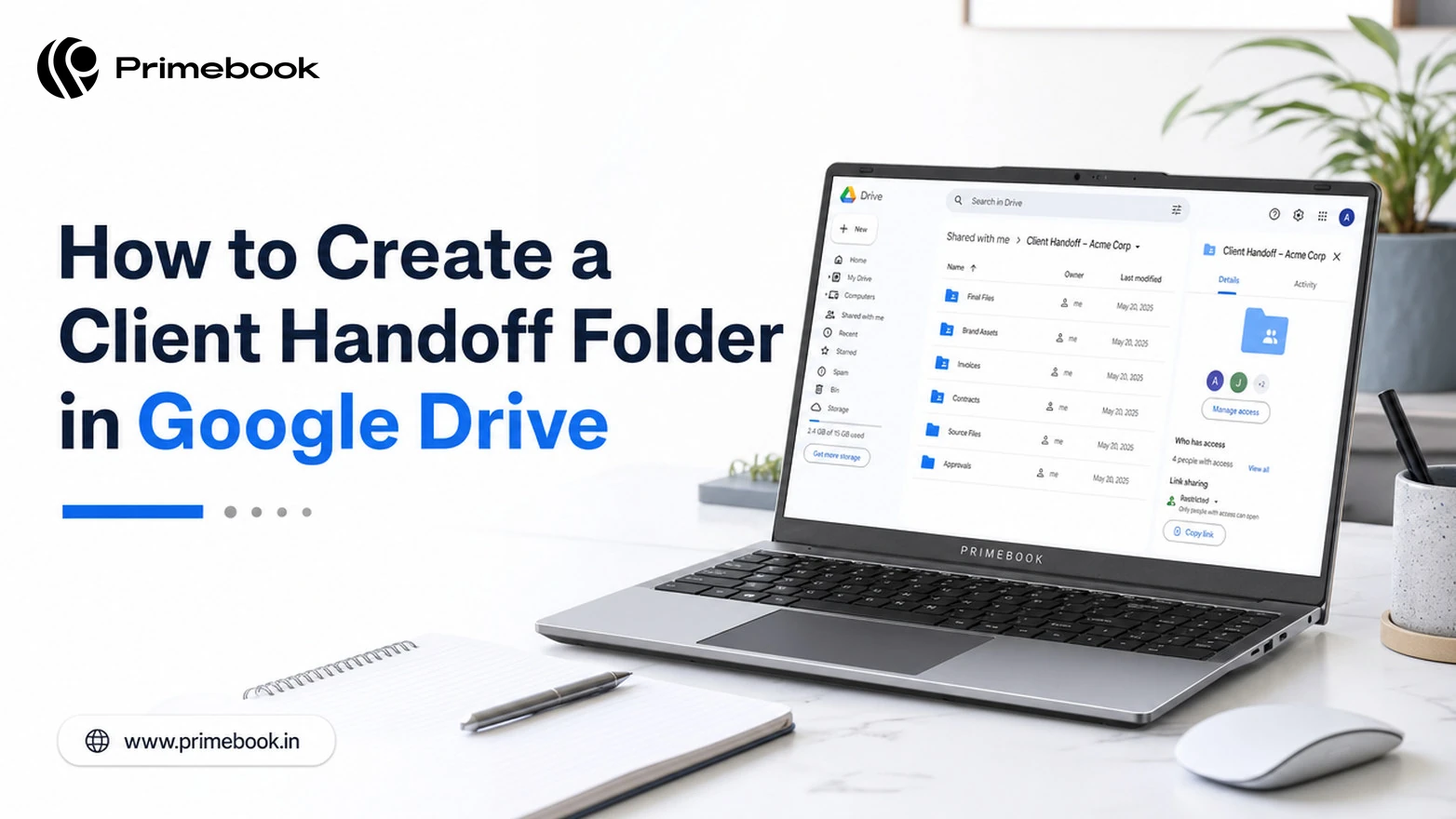
How to Create a Client Handoff Folder in Google Drive?

Introduction
A client handoff folder should do more than hold final files. It should make the approved version easy to find, keep access under control and give both sides a clear record of what was delivered.
For freelancers and small agencies, Google Drive is often the simplest place to build that system. But once a handoff contains client records, customer data or shared access, folder structure and permissions become more than an organisation's choice.
A useful handoff should also make sense to someone who was not involved in every revision, meeting or message that led to the final delivery.
This guide shows how to build a Google Drive client handoff folder that is clear for the client on day one and still practical to manage after the project closes.
What a Google Drive Client Handoff Folder Contains
A handoff folder is a final-stage folder, separate from the working folder where drafts and revisions pile up. Keeping the two apart means the client only ever sees approved material. A five-folder pattern covers most design, content, development and marketing projects:
The numbering forces the same order in every client's folder, so a returning client knows where to look without a tour.
Step by Step: Build the Handoff Folder
- Decide where it lives. A folder under My Drive is tied to individual ownership, which can complicate continuity if that person leaves the agency. A shared drive is owned by the team, so for anything beyond a solo project, use a shared drive's "Clients" area if Shared Drives are available through your Google Workspace setup.
- Open drive.google.com, click New, then New folder. Name it with a fixed pattern such as ClientName_ProjectName_Handoff_YYYY-MM so folders sort by client and date.
- Inside it, create the five sub-folders from the table above using the exact names, including the numbers.
- Upload final files with New, then File upload or Folder upload. Name each file ClientName_DocumentType_Version_YYYY-MM-DD; "final_final2.png" is how a wrong version ends up on a client's website.
- Write the handoff document as a Google Doc in 01_Project_Overview. List every deliverable with its format and its exact folder path, add a table of open actions with owners and dates, and link each entry directly to the file. The version history feature in Docs keeps a record of changes made to that document after it is created.
- Save the empty structure as a "Client Handoff Template" folder in the shared drive. Google Drive cannot copy a folder in one click, so for each new client, recreate the five-folder structure from the template and then move or upload the project files into it rather than duplicating an old client's folder.
Share the Folder Without Over-Exposing It
The default temptation is "Anyone with the link" because it removes the "I can't open it" email. It also makes access harder to audit, since a forwarded link can extend access beyond the people you originally intended. A tighter sequence costs two extra minutes:
- Keep General access on Restricted for the parent folder; sub-folders inherit this.
- Add named client accounts by email. Give approvers Commenter access on 03_Final_Assets and Editor access only on 05_Licence_and_Access, where they will add their own notes.
- For sensitive files, open Share, then Settings, and untick "Viewers and commenters can see the option to download, print, and copy" plus "Editors can change permissions and share". This reduces the ways recipients can redistribute files or extend access.
- Record who was added, at what level and on which date in the deliverables log. That table becomes the audit trail later.
Clients may open the folder on a phone, so previews matter: PDFs and PNGs render in the Drive app, while zipped archives force a download that may fail on a weak connection.
Also Read:
- How to Automate Repetitive Tasks Using AI in 2026?
- How to Automate Reports Using Gemini in Google Sheets?
DPDP Checks Before You Send the Link
A handoff folder containing digital personal data about a client's customers, staff or users may fall within the DPDP framework, depending on how and why that data is being processed. Section 4(1) of the Act, once the relevant provisions come into force under the notified implementation schedule, permits processing for a lawful purpose based on consent or a specified legitimate use, so a quick pass through the folder is worth it: survey responses, customer lists and campaign data that were never meant for this client's long-term records do not belong in 03_Final_Assets.
Two parts of the DPDP framework are especially relevant to how the folder is designed for future compliance. The notified framework provides for requests relating to access, correction, updating or erasure to be addressed within a maximum of ninety days once the relevant provisions become applicable, which is only realistic if files are named and placed so a specific record can be found without opening every document. The framework also provides for affected individuals to be informed promptly after a personal data breach once the relevant requirements apply, which gives the sharing log above a second practical use.
Also Read: Google's 8 Newest AI Tools
After the Handoff: Acceptance, Downgrade, Archive
Sending the link is the midpoint, not the end. Three dated events close the handoff cleanly:
- Acceptance: The client marks each line of the deliverables log as accepted, or notes exceptions. Until this happens, 04_Logs_and_Reports stays editable by you.
- Downgrade and revoke: Once accepted, internal Editors drop to Viewer, contractors are removed, and the client contact who owns the assets is named in 05_Licence_and_Access. When the engagement fully closes, external access is revoked and the date logged.
- Archive: The working folder moves to an "Archive" area of the shared drive; the handoff folder stays intact for the agreed retention period so the delivered files remain available if something needs to be checked or corrected later.
Also Read: How to Set Up Google Calendar Appointment Schedules?
Conclusion
A handoff works best when it becomes the agreed reference point for the project, rather than one more copy of the files. If later corrections are exchanged through email attachments, chat downloads or newly created folders, the structure built at handoff quickly loses its value.
The stronger habit is to bring later approved changes back into the same handoff system. That way, the folder does not just capture what was delivered once; it remains clear which version both sides should treat as current.
FAQ
What if the client does not use a Google account?
If the organisation allows visitor sharing, the folder can be shared with the client’s existing email address without requiring a Google account. The client verifies their email and can then receive Viewer, Commenter or Editor access for seven days before re-verification is required. If visitor sharing is disabled by the organisation, the client may need to use a Google account or another agreed delivery method.
What should be done if some project files are too large for Google Drive?
Google Drive supports most file types and allows individual non-Google files up to 5 TB, provided enough storage is available. If a file exceeds the applicable limit or is impractical to share through Drive, split it into smaller parts or use a storage or hosting service designed for large files, then place the access link and instructions inside the handoff folder.
What file formats should be included in a client handoff?
Include the formats the client needs to use immediately, along with any agreed editable or source formats needed for future changes. For example, a design handoff may include PNG or PDF exports alongside approved source files, while a document project may include PDF plus DOCX or another editable format. The exact mix should follow the agreed deliverables rather than adding every available file type.
How do you hand over third-party assets such as fonts, stock images or licensed plugins?
Separate the asset from the right to use it. Include the relevant licence information, purchase or source details, and instructions for anything the client must acquire or register in their own name. Do not assume that a font, stock asset or plugin licence purchased for the freelancer or agency can automatically be transferred to the client. If the licence does not permit redistribution, provide the source or purchase link instead of copying the licensed asset into the handoff folder.
Editorial Transparency: This guide is researched and reviewed by Primebook’s editorial team to help freelancers and small teams organise client handoffs in Google Drive more reliably. AI tools (including agentic AI) have been used for research, outlining and drafting, but the final article is reviewed by our editorial team. Google Drive features and sharing controls are checked against current Google documentation, while references to India’s digital personal-data framework are checked against official government notifications and guidance. Workflow recommendations are editorial guidance rather than legal advice. Because software features and data-protection requirements can change, readers should verify time-sensitive requirements with the relevant official source.